
New on Substack: draft Notes, hide revenue stats, pin multiple posts, and more
Improvements across your dashboard, publishing tools, and design
Today, we’re introducing a series of updates across Notes, your dashboard, live video, and your feed. These updates make it easier to draft, manage, and publish your work on Substack.
Save Notes as drafts
You can now save Notes as drafts on web and iOS, with Android coming this week. If you start writing a Note and hit cancel, you’ll have the option to save it instead. When you return to the composer, you’ll find your saved Notes in a new Drafts tab.
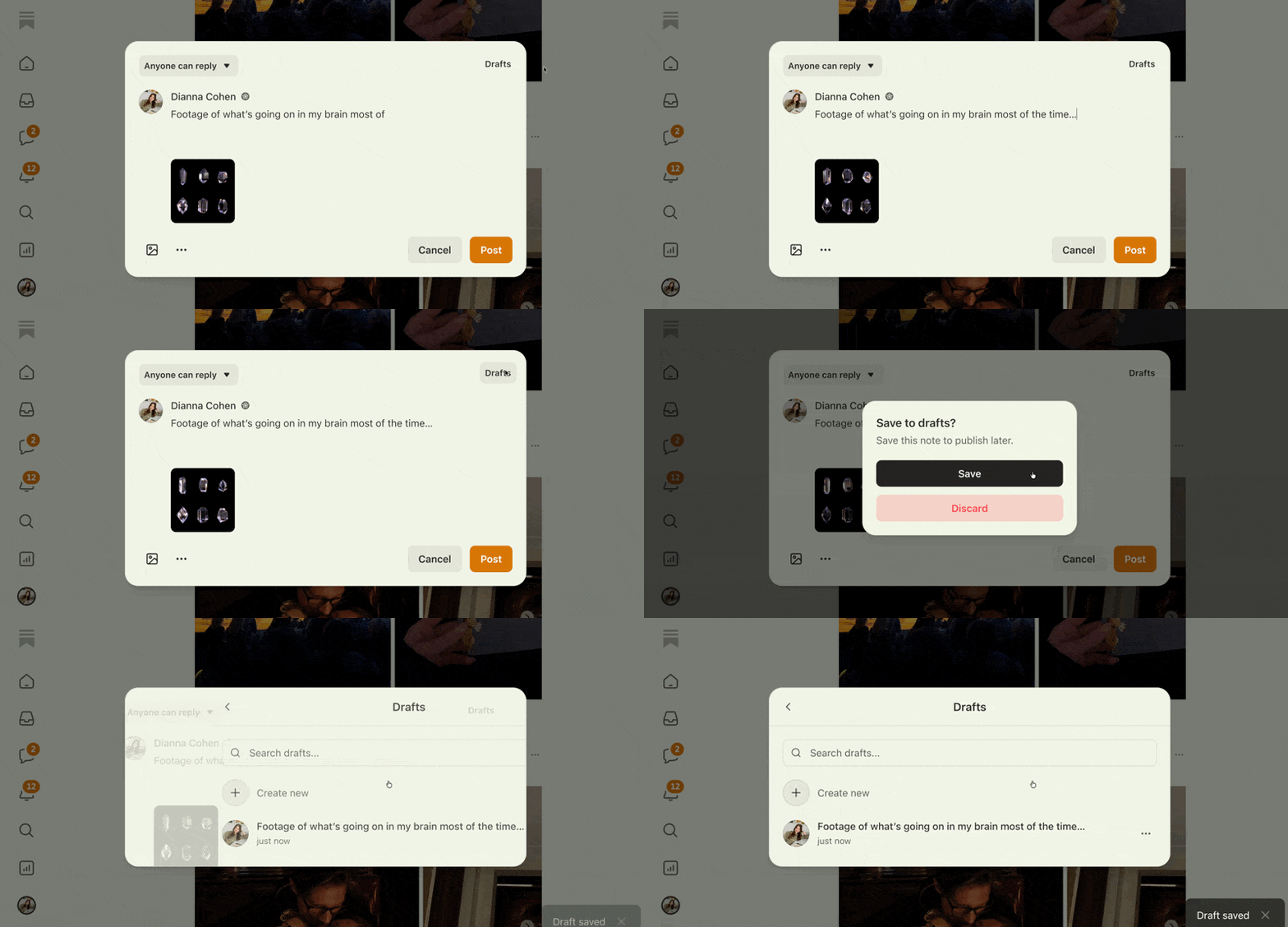
This makes it easier to capture ideas as they come to you, refine them over time, and publish when you’re ready.
Learn more about drafting and publishing Notes in our Help Center.
Pin multiple posts to your homepage
You can now pin multiple posts to your homepage to control what visitors see first.
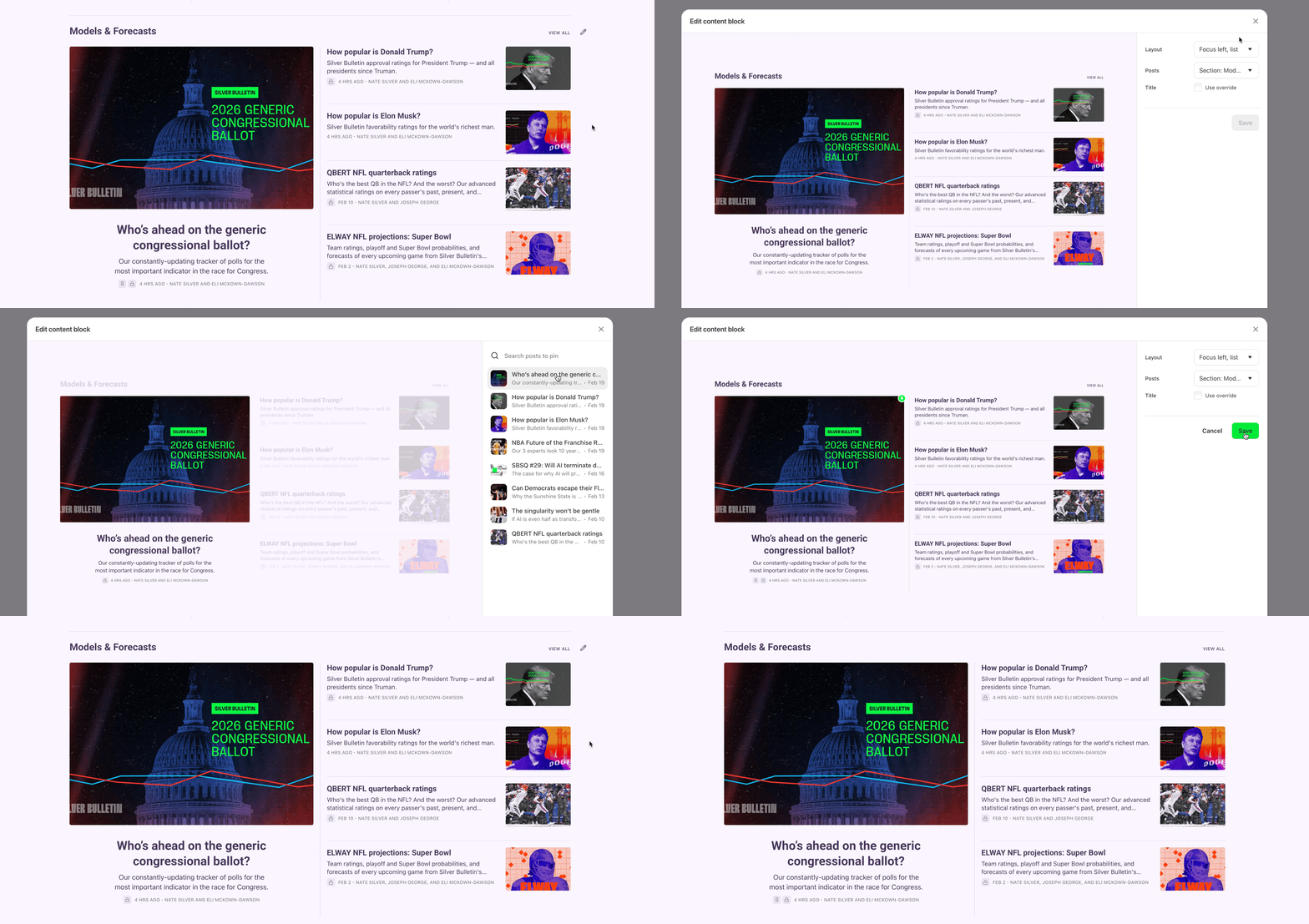
To pin a post:
Tap the pencil icon on your homepage
Search for the post you want to feature
Select it to pin
Learn more about customizing your homepage in our Help Center.
Export your publisher stats as a CSV file
Publisher stats are now exportable as a CSV file, directly from your dashboard. Exports reflect whatever filters and views you’re currently using, so you can pull the exact data you need. That might mean analyzing audience growth or tracking traffic trends over time, all in a format you can work with offline.
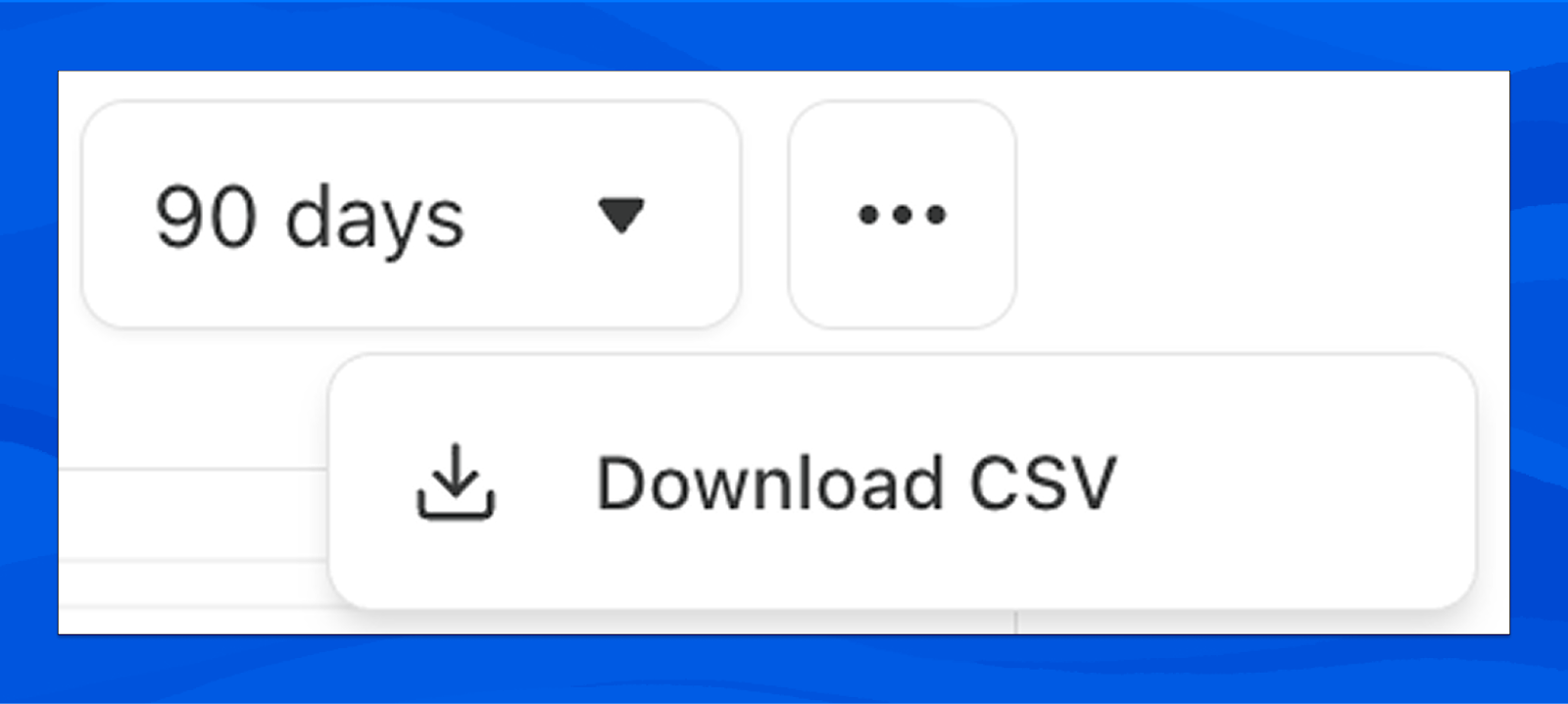
To export, select the time range you’d like to analyze in your publication dashboard, then click “Download CSV” from the menu.
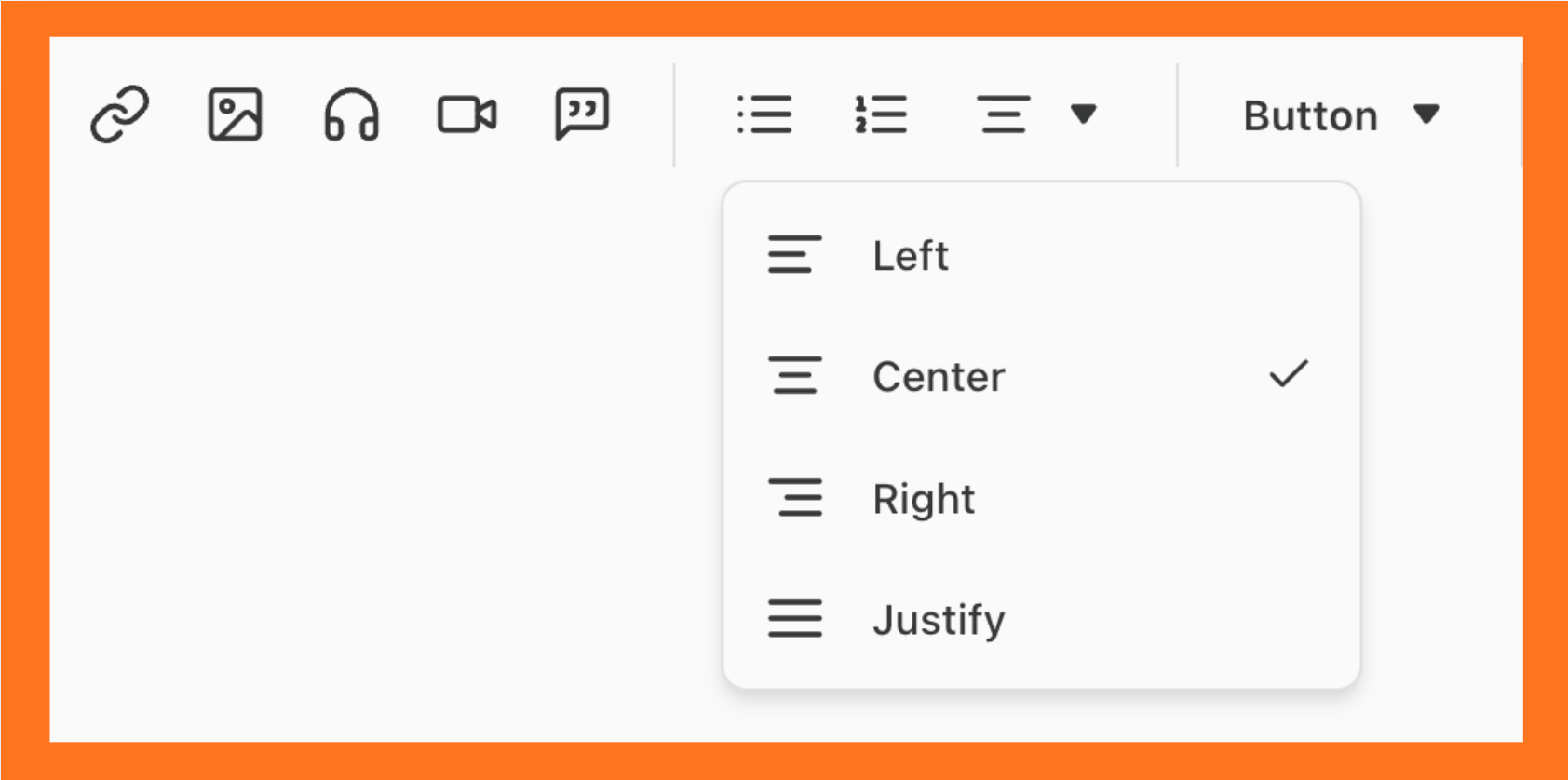
Center, right align, or justify your text
You can now center, right align, or justify text in your posts from the web editor toolbar, giving you more control over how your writing looks on the page.
Hide revenue and subscriber counts
If you’d prefer not to see revenue and subscriber counts on your dashboard, you can now hide them. This lets you keep those metrics out of view while you focus on your work.
You can toggle this setting on or off in your publication settings.

Learn more about Substack’s metrics in our Help Center.
Improved code formatting
Code blocks now support syntax highlighting. Language is detected automatically, so your snippets render with consistent formatting, spacing, and line numbers, across web, mobile, and email. Readers can copy the full snippet with a single click. This works everywhere your posts show up, including email.
What’s included:
Syntax highlighting
Automatically detects language on paste from VS Code
Indentation shortcuts (tab / shift+tab)
Drag, cut, and paste support
Line numbers for reference
One-click copy to clipboard
def fibonacci(n):
    if n <= 1:
        return n
    a, b = 0, 1
    for _ in range(2, n + 1):
        a, b = b, a + b
    return b

print([fibonacci(i) for i in range(10)])
Learn more about using code blocks in our Help Center.
Manage live videos in one place
We’ve added a new section to your creator dashboard for managing live videos. Scheduled streams, recordings, and drafts were previously spread across different areas. They’re now organized in one place within your dashboard.
In this new section, you can:
View scheduled live videos
Access recordings of past livestreams
See unpublished recordings of live videos
Edit or cancel scheduled streams directly from the dashboard
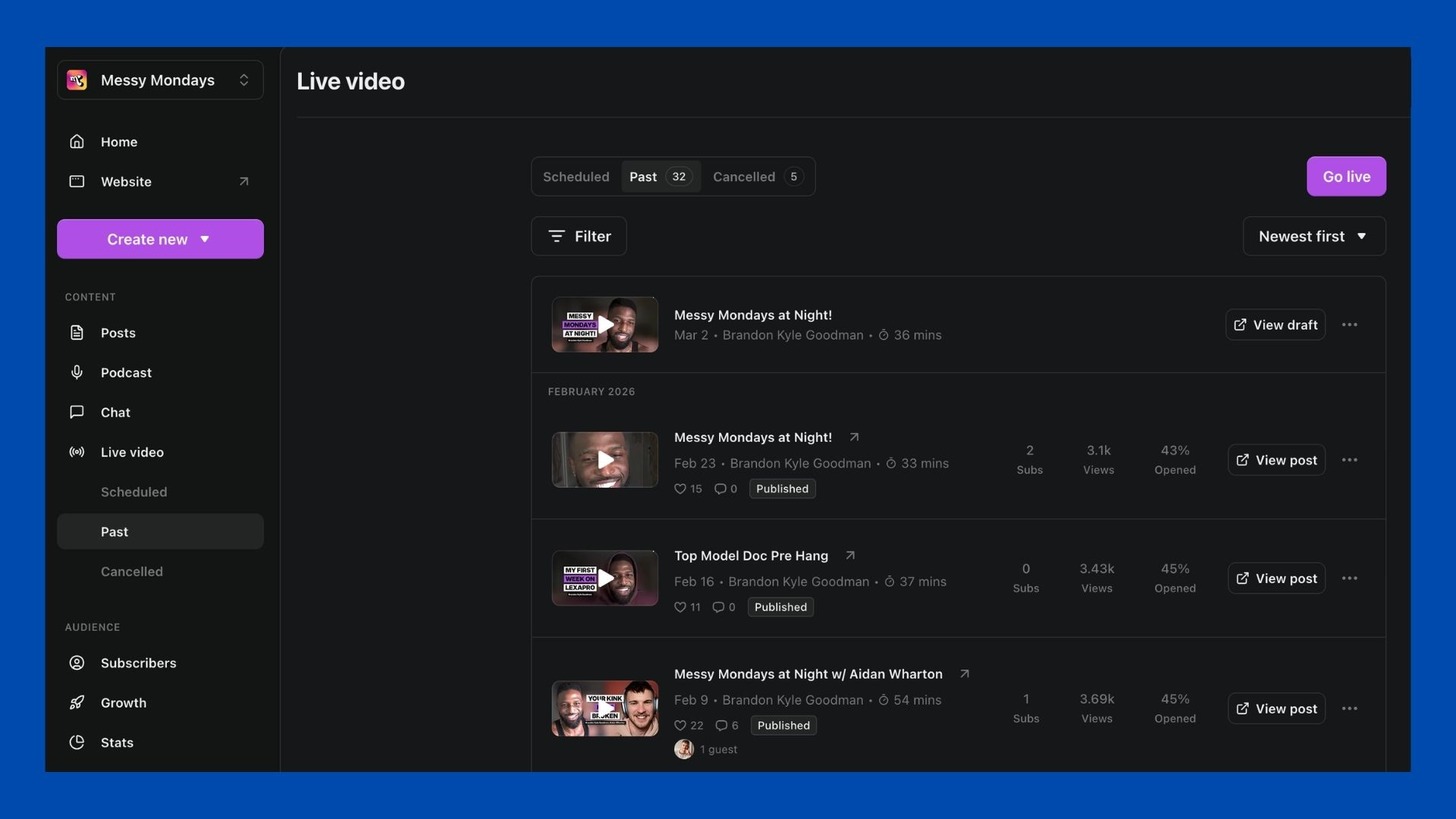
This gives you a clearer overview of your live video workflow and reduces the need to jump between different tools to manage upcoming or past broadcasts.
Learn more about managing live video in our Help Center.
These updates are available now
We’re continuing to invest in improving the core parts of Substack—the tools you use every day to publish, design, and understand your work. We hope these updates give you more flexibility in how you publish, manage, and discover work on Substack.
Thanks for building with us.
We’ve turned off comments for this post. As always, feel free to share your perspective in a Note, in a post, or by restacking.